

On the SYSTEM tab of Sense app, you will find the menu for various Settings for your Innuos system.
Audio
The full list of Audio settings can be found here – Getting Started
Storage
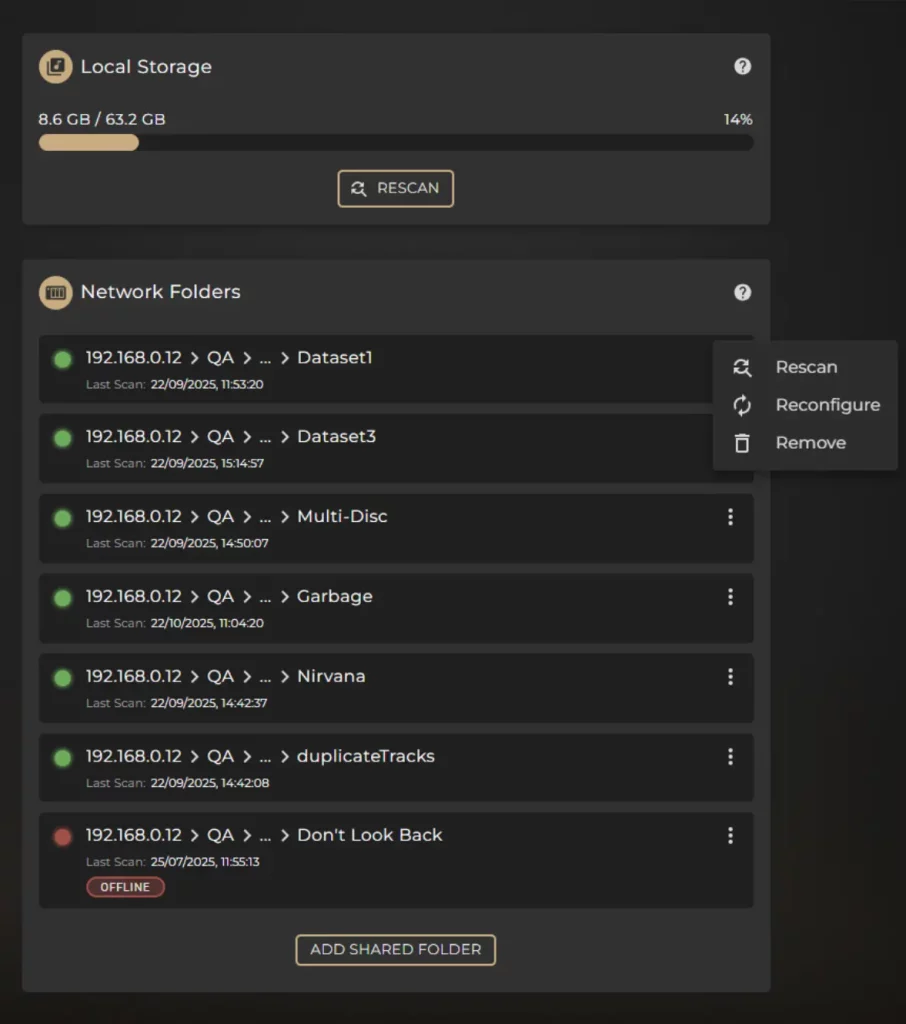
Here you will find an overview of your Local Storage from the internal memory of your Innuos, along with information on any Shared Folders (such as a NAS drives) you have included in your Sense library.
This is also the page you will be brought to as part of the M.2 SSD installation process if newly fitted into your system.
Local Storage will show the total amount of available storage and how much of that capacity is currently in use by your music library. Here you will find a manual RESCAN button in case there have been direct file/folder changes made externally that do not seem to have been accounted for in the Sense library.
Network Folders will allow you to ADD SHARED FOLDER, monitoring a folder for music files stored within a separate NAS folder or music server – the guide on configuring this can be found here: Music from NAS or Shared Folder
Multiple separate network shares can be configured, and their connection status will be listed here including the option to perform manual rescans on each one in case you have added or removed files from that network path.
System Mode
Here is where you change the various modes of the system, as outlined in our full guide here: System Modes – Explained
SmartQ
Here you can enable or disable SmartQ, a feature that allows the system to automatically add more tracks to the end of your current Now Playing queue. The behaviour is adjustable and can be altered to emphasise playing relevant music that is new to you and does not exist in your library, or you can instruct it to strictly play only existing music from within your current library. A balance between the two can also be chosen
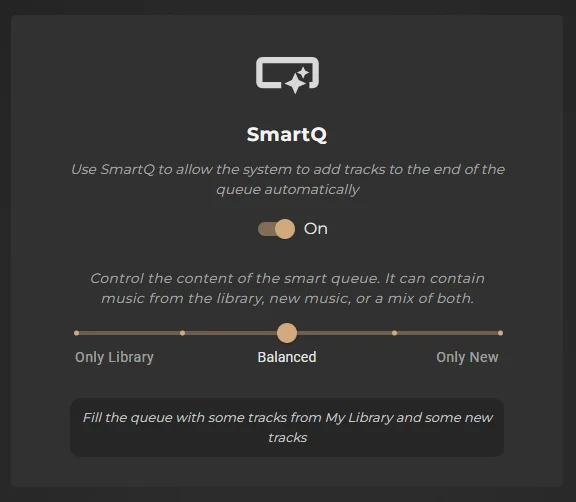
See here for more details on this feature – SmartQ
Language and Timezone
Here you can change the timezone of your system, and also set the system language to English, German, French, and either Simplified or Traditional Cantonese.
System Update
Here you can check your current version of software and update to the latest version if available. We strongly suggest you keep your Sense software up to date regardless of how you use the system (such as Roon Core, UPnP server, etc).
Streaming Services
You can login to your streaming services here, adding Qobuz, TIDAL, Deezer, Idagio, or HighResAudio to your Innuos streamer.
For TIDAL and Qobuz services, you will also have the the choice to toggle Library Integration on or off, determining if your favourite saved Tracks, Albums and Artists appear in the main overall Sense music library.
In the case of Qobuz, you will also this Integration toggle for music you have Purchased directly from the Qobuz download store.
Both services will also have a RESYNC option, to be used when you have added or removed music from the native app of the respective streaming service and want those changes to be reflected in the Sense library.
Sonos
If you have a Sonos system, then within their app you can setup your Innuos as a music library to play the local files stored within it. Sonos will require:
– Filepath
– Username
– Password
These will all be listed here within this menu, including the unique Filepath name that is specific to your system.
When turning the Sonos Integration to ‘On’ the Sonos music library will update immediately with any new music files that have just been added to your Innuos server.
*KB Note* Sonos does not support all file types, you can read the supported Audio types for your Sonos system here – Supported audio formats for Sonos music library
Read more on integrating Sonos here – Connecting Sonos Systems
UPnP
You can enable and disable the pre-configured AssetUPnP server software here, which is needed to make your Innuos system visible to other UPnP music streamers on your network. The factory default for this setting is to be set to ‘On’.
‘KB Note* AssetUPnP is disabled when running your Innuos system as a Roon Core, or in any Endpoint mode configuration.
Read more on UPnP and your Innuos system here – Innuos & UPnP Streamers
Contact Support
If you need technical help with your system, then you can send a direct support ticket to Innuos through here. This has the advantage of automatically including some system information that helps to immediately provide valuable details to the Innuos support team, such as software version, device model, operating mode and so on.
System Logs
If instructed by the Innuos support team, then the System Logs can be downloaded here. System Logs can be opened and examined only by the Innuos support team.
About Innuos Sense
Privacy policy and disclaimer information relating to Sense app can be read about here.
Advanced Settings
Offline Mode
Offline Mode can be used when you know that your system will not have an active connection to the internet and wish to force the system into an offline state. In Offline Mode, the system will not make attempts to authenticate streaming services, will not search online for metadata when ripping a CD, and other system tasks that otherwise would require the use of the internet.
Compact Music Library Database
This will remove all traces of previously deleted imports. It will consolidate the database for potentially improved performance.
Automatic MQA Detection
When this feature is turned on, innuOS can automatically detect what are the MQA capabilities of a DAC (no MQA Support, MQA Renderer or MQA Full Decoder). Turn off this feature if you are having issues with some DACs with older firmware.
Clear Music Library
Clearing the Music Library will erase all local files contained within the internal storage only – music files that are shared from an external NAS or USB drive would not be deleted. Other system settings and other elements of the library like streaming services will not be affected.
Clear Queue Cache
This should be used only if instructed by the Innuos Support team.
Refresh Library Cache
This should be used only if instructed by the Innuos Support team.
Download System Logs
The Innuos support team may request a copy of the system logs if helping with troubleshooting your system. You can download the system logs in a ZIP file from here, then email them to Innuos.
Factory Reset
The factory reset will delete all music stored on the system and revert all settings back to default. All playlists, favourites and other library data will also be erased.
*KB Note* This feature should only be used to revert the system to its default standard configuration and should not be used in the attempt of troubleshooting a potential issue.