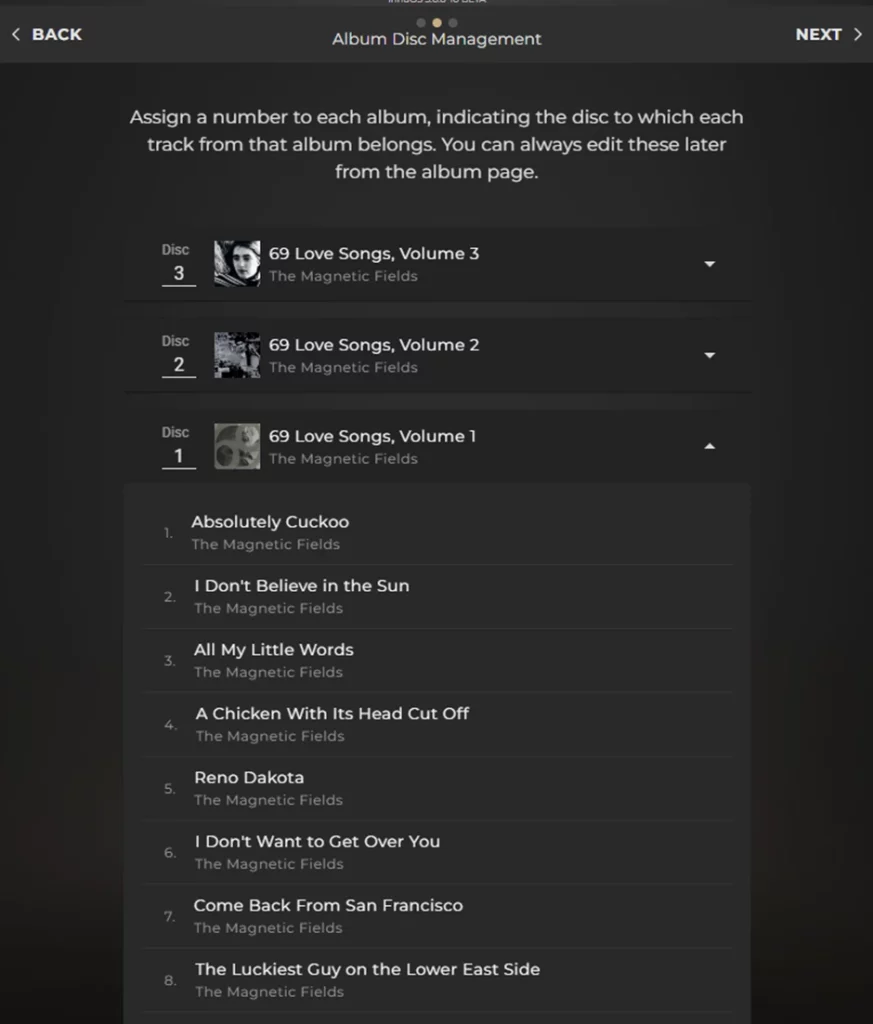

It is possible to combine albums in your local music library. Sense helps identify differences in album information and guides you through correcting them before merging.
When should I use Album Merge?
- Multi-disc albums: Separate discs or volumes that you would prefer to appear as one album.
- Inconsistent album information: Albums that have been split by different title or artist names.
- Compilation albums: Tracks from one compilation appearing under separate album entries.
- Different formats or resolutions: Tracks of an album that have been split by resolution or format that you want to combine as a Multiformat album.
How to merge albums
Step 1 – Select the albums
- Go to MUSIC -> Albums view in Sense.
- Activate multi-select mode found in top-right corner (behind the ‘options’ view if using phone).
- Select all the album entries you want to combine.
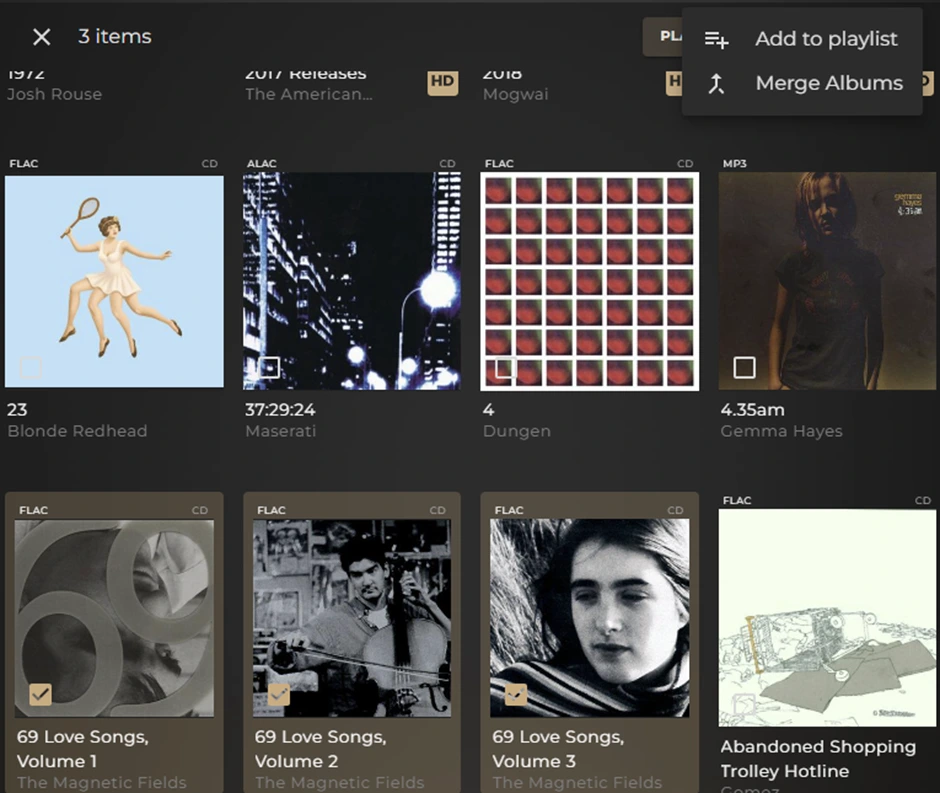
Step 2 — Start the merge
- Open the options menu in the top-right corner and select Merge Albums.
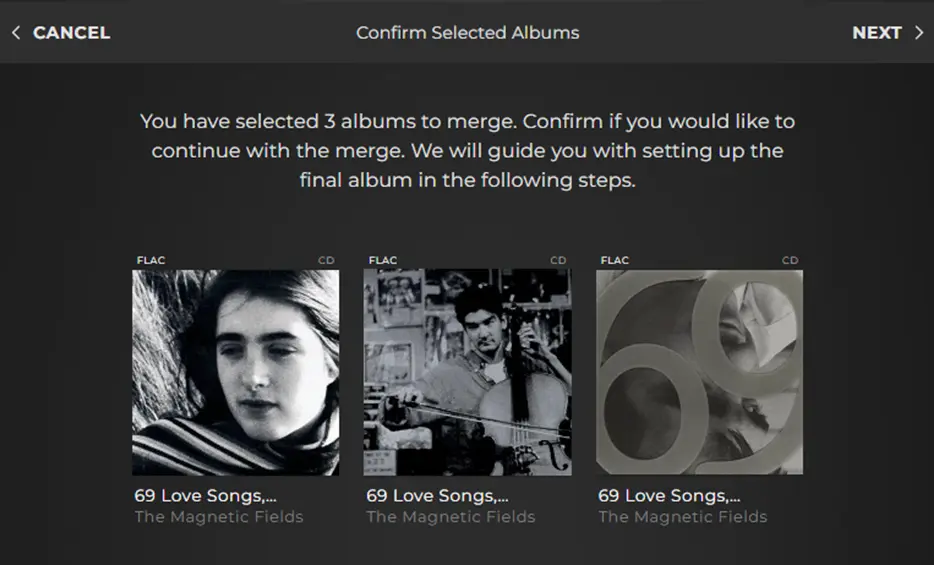
Step 3 — Review the album information
- Sense analyses the selected albums and identifies information that may need correcting. Follow the prompts to standardise the album title and, where applicable, assign the correct disc numbers. Check the track listings if you are unsure.
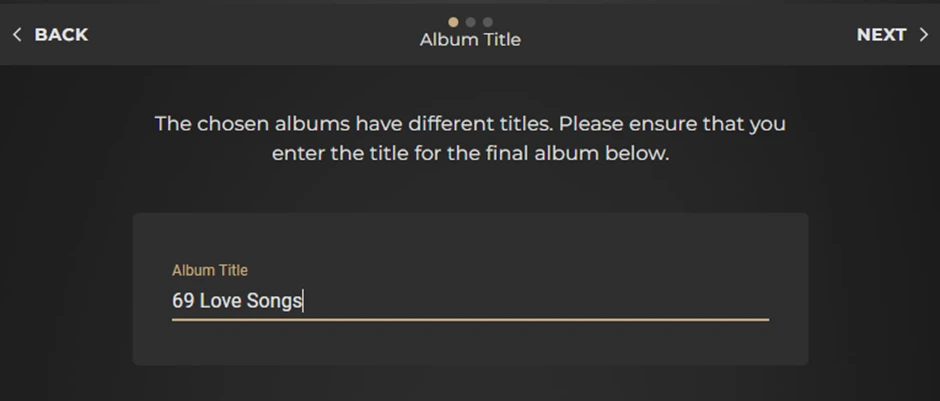
Step 4 — Confirm and save
- Review the proposed changes and select Save. Sense will update your library in the background. Allow a short time for the albums to merge into one.