

One of the many improvements with Sense 26 comes the new, improved album Editor tool.
One screen to edit any album
Opening Edit on a local or NAS album now takes you straight to a single, unified editing screen. Streaming albums from Qobuz or TIDAL remain read-only.
There’s no separate Classical Mode or Advanced switch to find first. The editor simply adapts to the album you’re working with: a straightforward pop album stays simple, while a symphony with four movements, three soloists and a conductor gives you all the relevant fields in the same place.
These options allow you to edit the Album Title, Album Artist, Label, and Year, mark an album as a Compilation, and add Tags (Genres) to your album.
Changes made to the album metadata will also be reflected on its tracks.
Album Title
Edit or clean up the release name here. This is particularly helpful for aligning discs from a multi-volume box set, removing unwanted clutter or inconsistent capitalisation, or tailoring the title to distinguish specific concert recordings.
Album Artist
Set the primary attribution for the release. In classical recordings, this is often the lead soloist, conductor, orchestra, or composer, depending on your preferred library sorting. As you type, Sense provides suggestions from artists already in your library to keep naming consistent.
Year
Enter the four-digit year for the release or recording. Useful for correcting missing metadata or ensuring specific historical performances sort chronologically in your library.
Compilation
Use this toggle to keep multi-artist or anthology releases grouped as a single unified album. In classical music, releases featuring multiple works performed by different soloists, ensembles, or conductors can often be split into separate entries if the original files contain mismatched album artist tags. Toggling Compilation ensures all tracks remain unified under one album.
Compilation
Add custom classifications to organise and filter your library beyond standard genres. Tags act as virtual folders, perfect for grouping albums by musical era (e.g. Baroque, Romantic), specific instruments, high-resolution formats, or record labels.
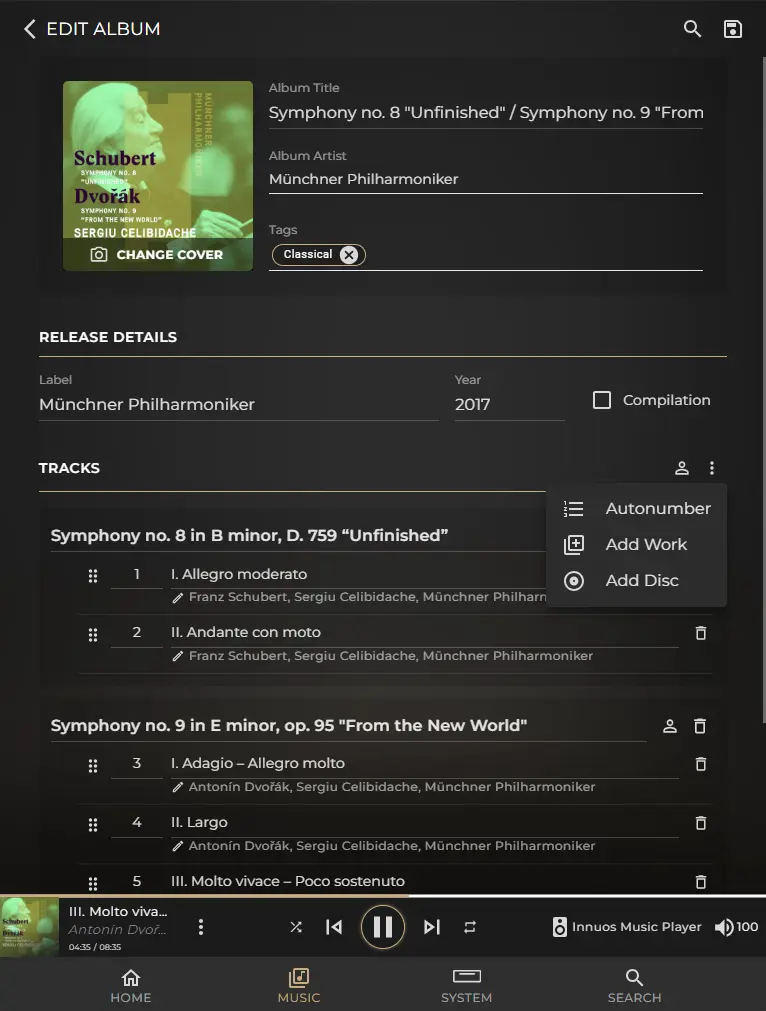
- At the top: the album’s identity — cover art, title, album artist(s), genre, label, year, compilation flag.
- Below: the track list, organised into one “Tracks” section (single-disc) or a collapsible numbered section per disc.
- Tracks can be grouped into Works by dragging a movement into or out of one, renumbered by dragging, retitled, or moved to a different disc — with a one-tap Autonumber.
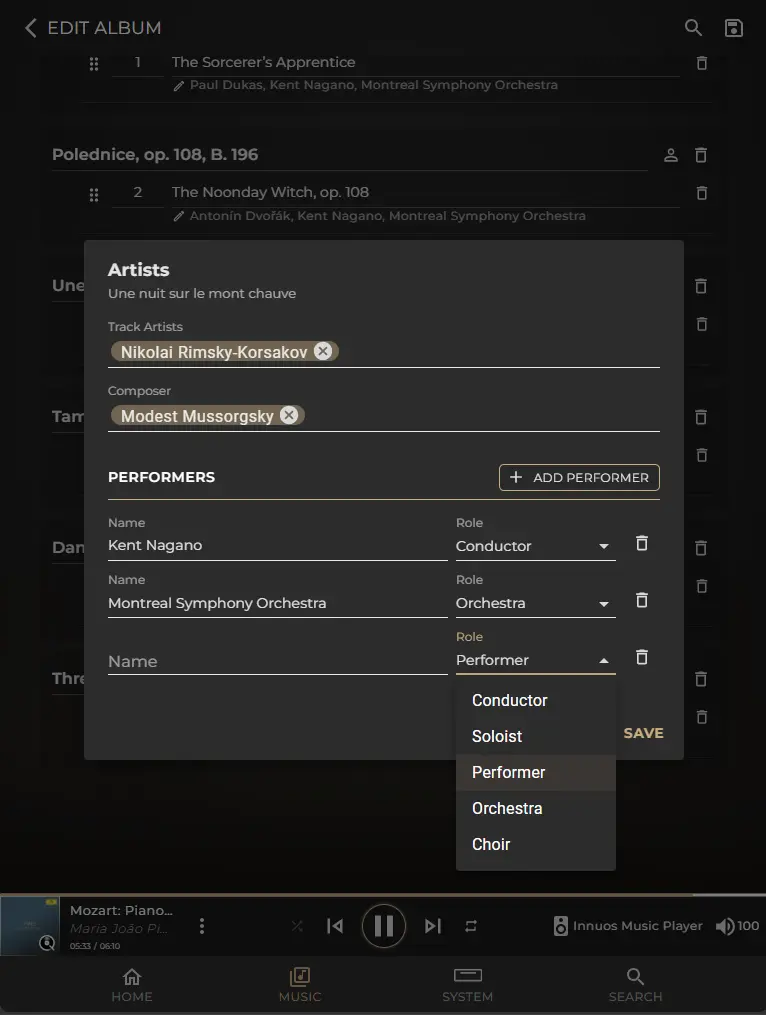
Composer, performers (Conductor, Soloist, Ensemble, Orchestra, Choir) and the main track artist are set through an Edit Artists screen — on one track for a full edit, or on a whole work, disc, or album at once for a bulk edit that only overwrites fields you actively change. Saving happens quietly in the background: you can move on right away, and the album shows a brief “updating” placeholder until it’s done.
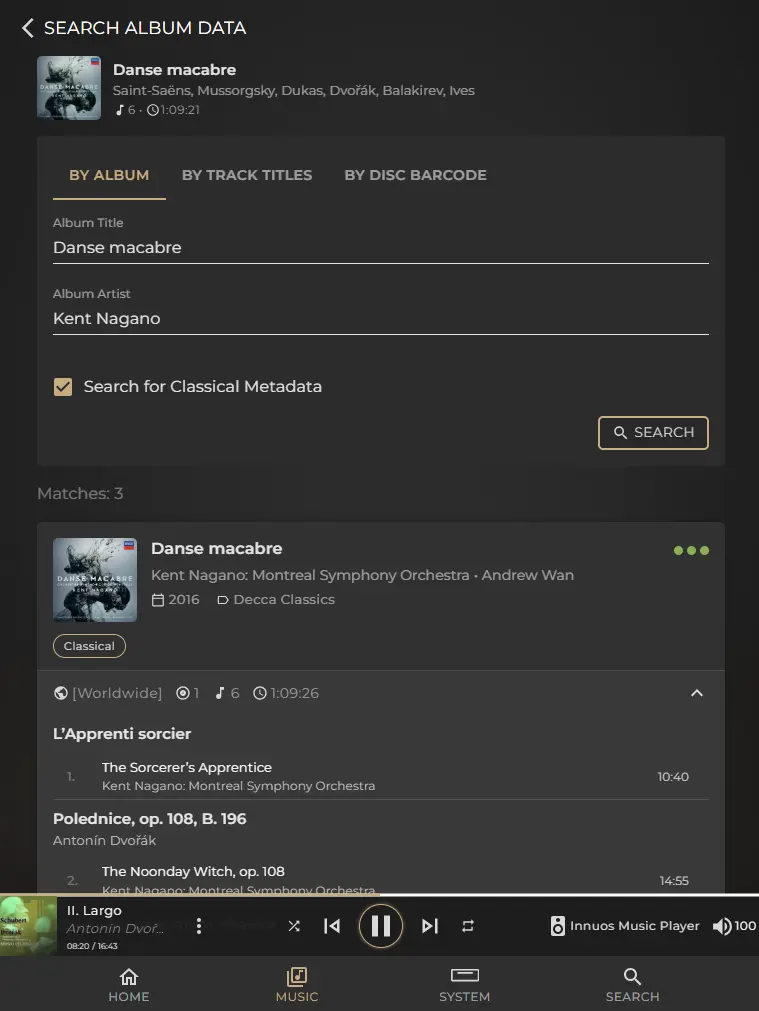
Search online for the right release
From inside the editor, Search online looks up your album against an online catalogue and lets you pull in its metadata instead of typing it in yourself — including works, composers, and performer roles when available. Search by album title and artist, by your own track titles, or by disc barcode. Results appear as cards with cover, title, artist, composer, year, label, and an expandable track list; classical results also show performers, so you can tell apart different recordings of the same piece.
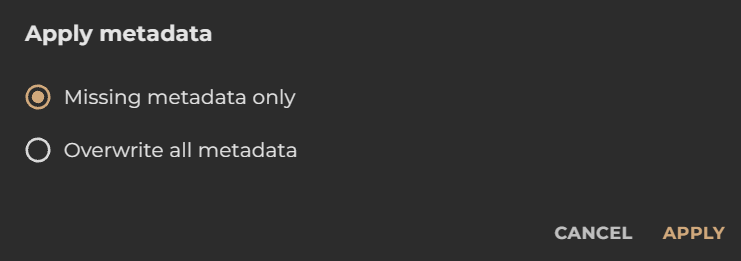
Applying a result will not overwrite any information you have already entered unless you choose to. By default, Fill blanks only leaves existing values unchanged.
Nothing is saved until you select Save in the editor which will reflect all the changes you’ve made.