
With the release of Sense 26, the Editor in Sense has been completely overhauled, making it more intuitive and providing improved metadata editing options.
The Sense app offers several ways to edit your music library. In this article, we’ll focus on changing album artwork, editing album metadata, and editing track metadata.
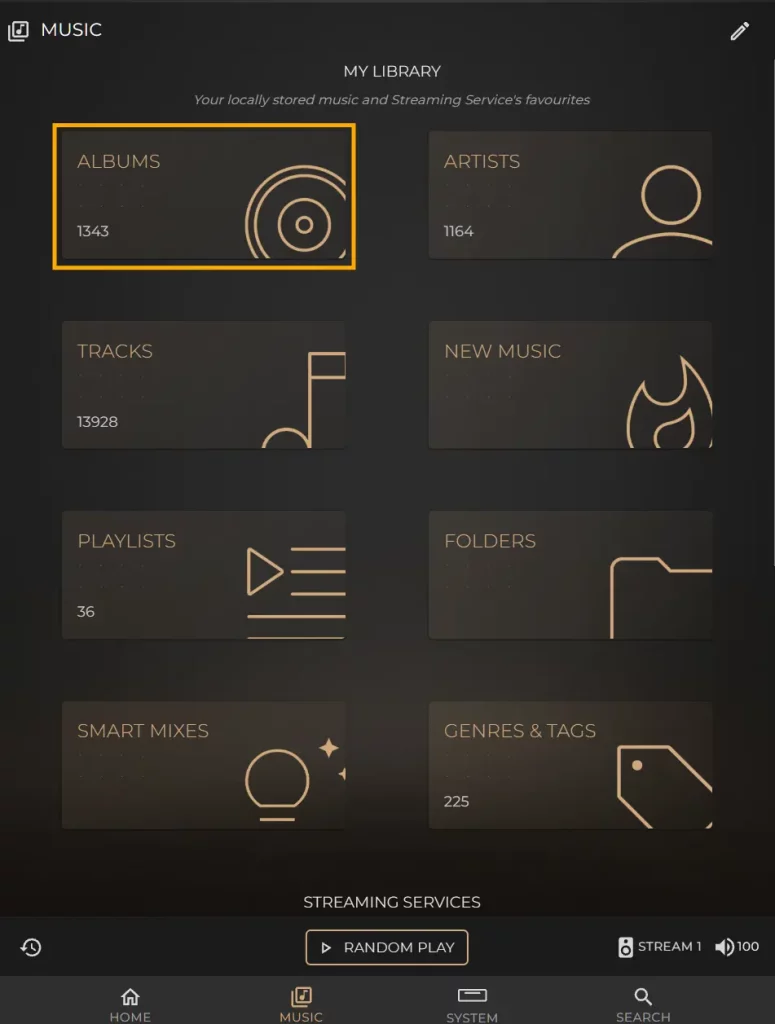
1. Navigate to the Albums section in Sense. You can do this by selecting the Music tab on the Sense dashboard, which you can access through my.innuos.com or through the Sense app.
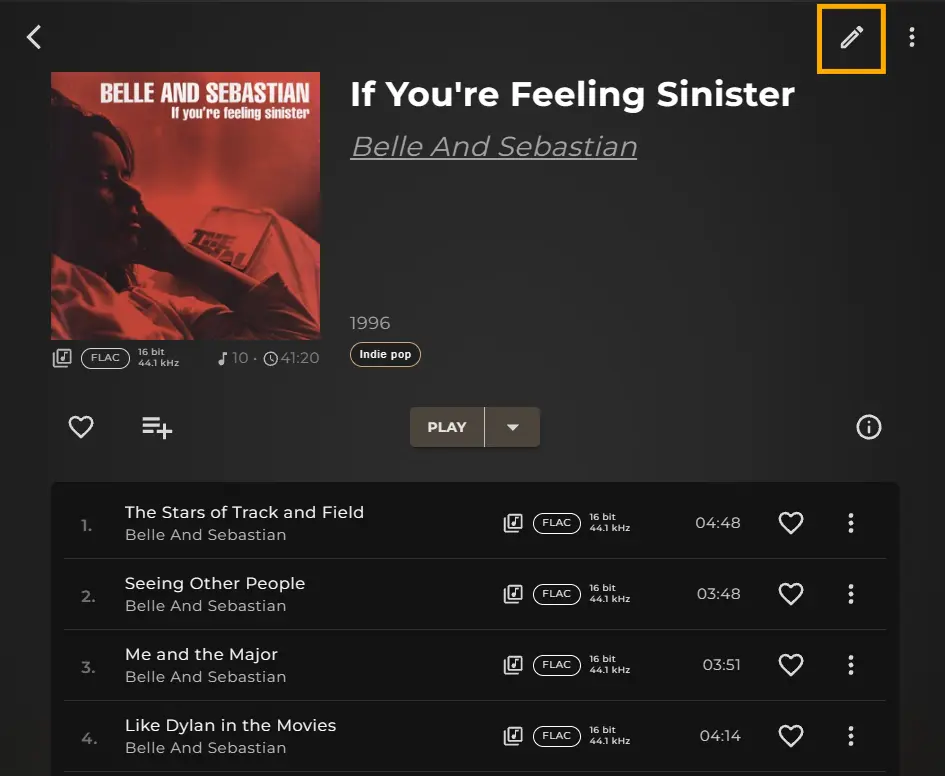
2. Select the album you want to edit, then in the top right corner of the page select the Pencil icon to open the editor. You will then be taken into the editing suite for that album.
Album Merging
It is possible to combine albums in your local music library. Sense helps identify differences in album information and guides you through correcting them before merging.
When should I use Album Merge?
- Multi-disc albums: Separate discs or volumes that you would prefer to appear as one album.
- Inconsistent album information: Albums that have been split by different title or artist names.
- Compilation albums: Tracks from one compilation appearing under separate album entries.
- Different formats or resolutions: Tracks of an album that have been split by resolution or format that you want to combine as a Multiformat album.
Read on the Album Merging process here – How To Merge Albums
Editing the Album Metadata
These options allow you to edit the Album Title, Album Artist, Label, and Year, mark an album as a Compilation, and add Tags (Genres) to your album.
Changes made to the album metadata will also be reflected on its tracks.
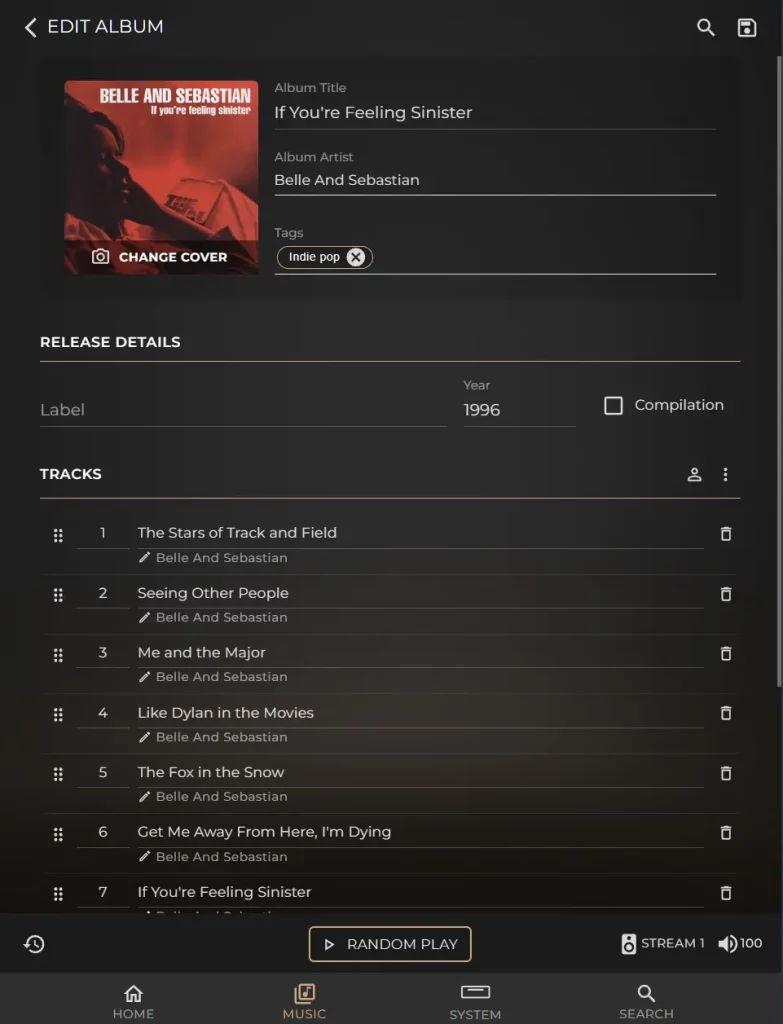
Album Title
Here you can change the album name. This is particularly useful if you want to combine two albums into one, or simply remove unwanted information from the title, such as unnecessary capitalisation or additional details.
Album Artist
Change the album artist to the name you want. As you start typing, Sense will suggest artists already saved in your library, helping you quickly select the correct one.
Year
Enter the four-digit release year for the album. This is useful if the imported metadata is incorrect or missing
Compilation
For locally stored albums, the Compilation option allows you to combine multiple albums into a single album. An album may be split into several separate albums if the original files contain different Album Artist metadata. For example, an album featuring multiple artists may be separated based on the different artist names.
Enabling Compilation can resolve this by grouping the tracks into a single album. The Album Artist will typically be set to Various Artists, which can also be edited if required.
Tags
Tags allow you to organise your library according to your own preferences. Think of them as virtual folders that can be used to group similar albums together.
You can use tags for genres, music types, formats, or any other categories you find useful.
Editing Classical Music
With the release of Sense 26, the Editor in Sense has been completely overhauled with improved metadata options. This means users with Classical music libraries can now view more of the important details about their music library in Sense, including on the Now Playing screen.
See the expanded options for this in more detail here – Classical Mode – Editor
Changing the Album Cover
Artists may change the artwork for their releases, or something may have gone wrong when your album was uploaded. You may also simply prefer different artwork for a particular album.
Whatever the reason, you can easily replace the album artwork with an image of your choice.
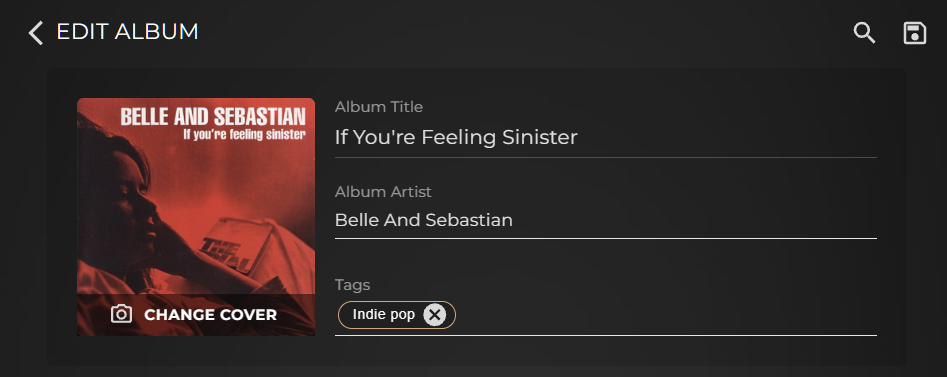
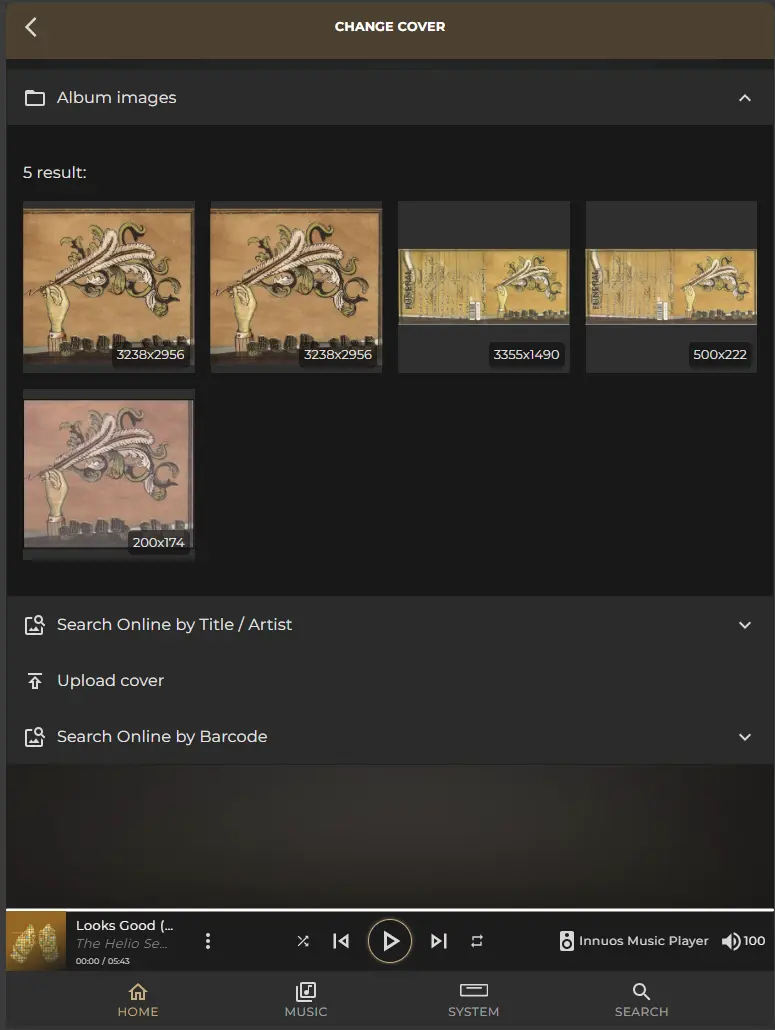
Select the Change Cover button on the underside of the artwork in the top left corner of the editor. You will now notice that you have 4 options available for you to edit your album art cover.
- Album Images
This allows you to switch artwork based on the images available in the Albums folder. You can manually copy images into this folder by locating it through your system shared folders as described in the guide – Accessing the Shared Folders on your Innuos System
- Search online by Title /Artist
Allowing you to search the web via the information in Album Title and Album Artist
- Upload Cover
Will open up a window to your computer so you can upload a photo from it, so if you have previously saved a great cover to replace the current one, just navigate through your folders and upload it. - Search Online by Barcode
CDs have a barcode with a number on them. Just insert it here and click search
Editing Track Metadata
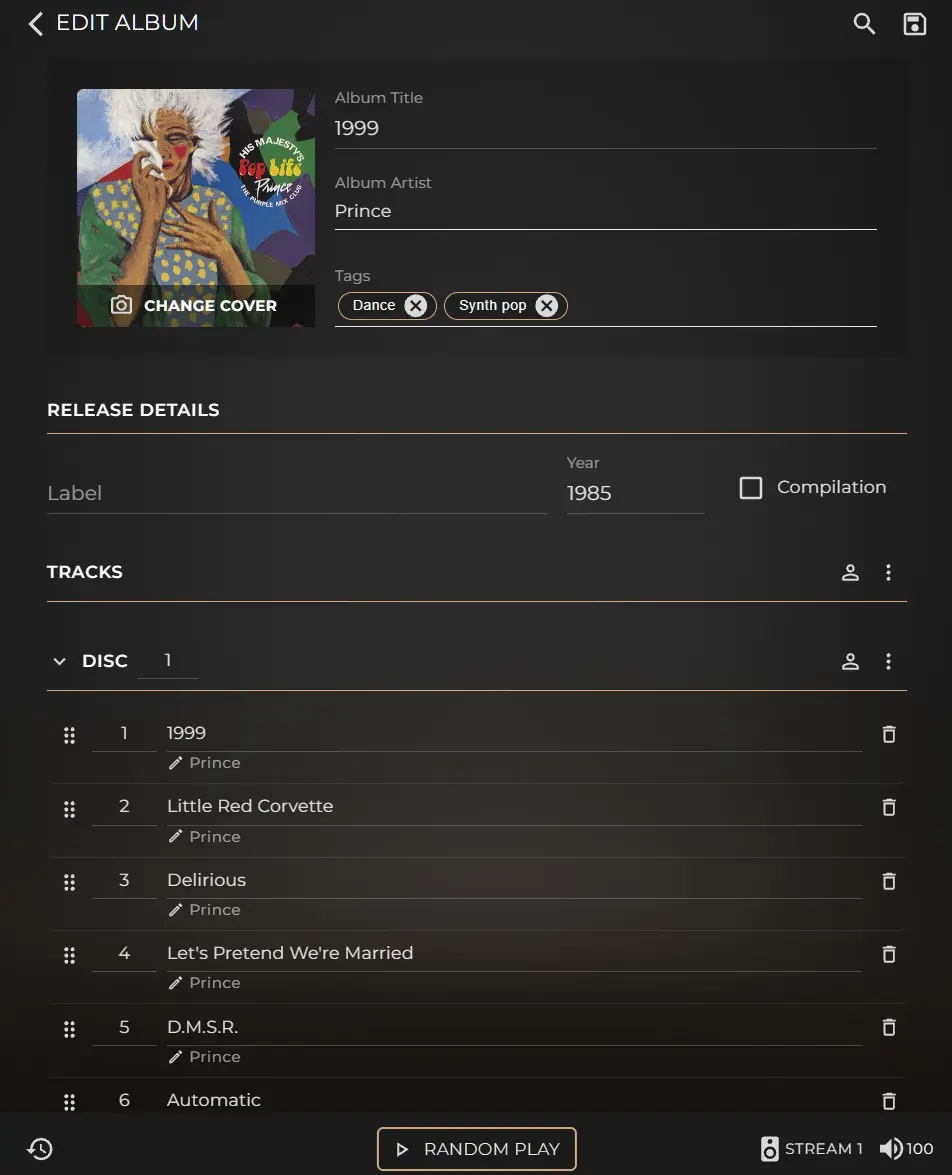
Once you select the album you want to change the Track information, just click on the PENCIL Icon
Here you will be able to edit individually your Disk (providing the album has more than 1 disk) and Track number, Title, Artist, and Composer.
(Note that here you also have the option to delete a single track with the Trash icon to the right)
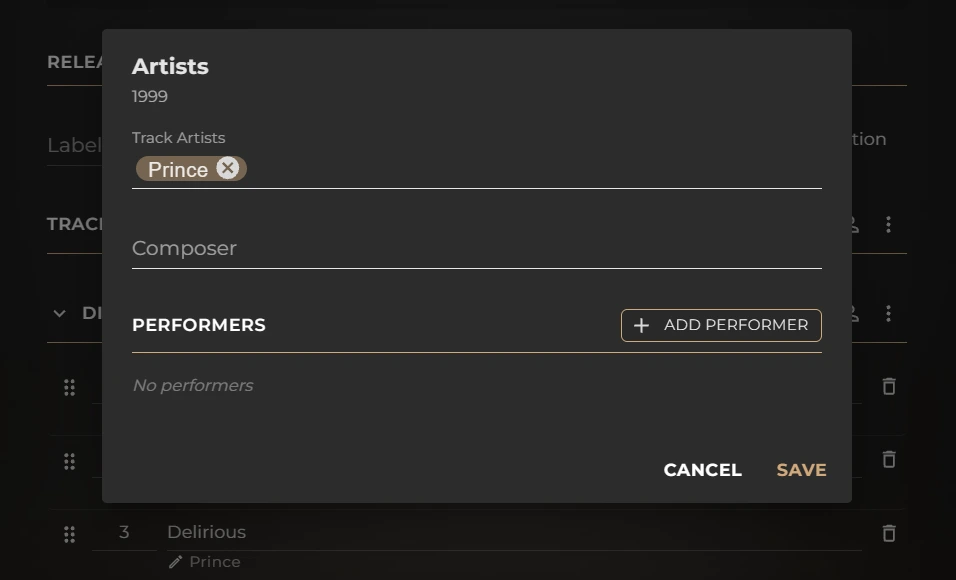
Adding an Additional Artist or Performer
To change the artist or add an additional artist or performer to an album, select the Human/Body icon.
To change the artist or add an additional artist or performer to a specific track, select the Pencil icon beneath the track title.
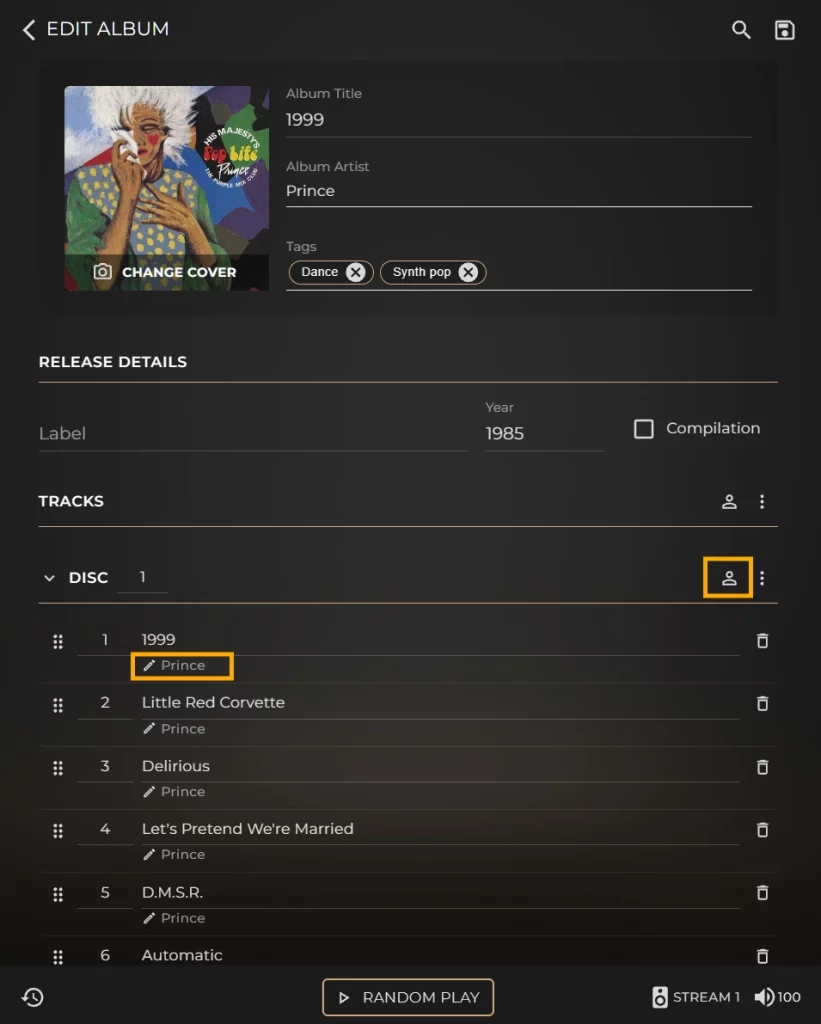
This will open the editing options for the album or track. You can add or edit additional artists, composers, and performers.
When adding a performer, you can choose from several roles, including Conductor, Soloist, Performer, Orchestra, and Choir.
Deleting Single Tracks
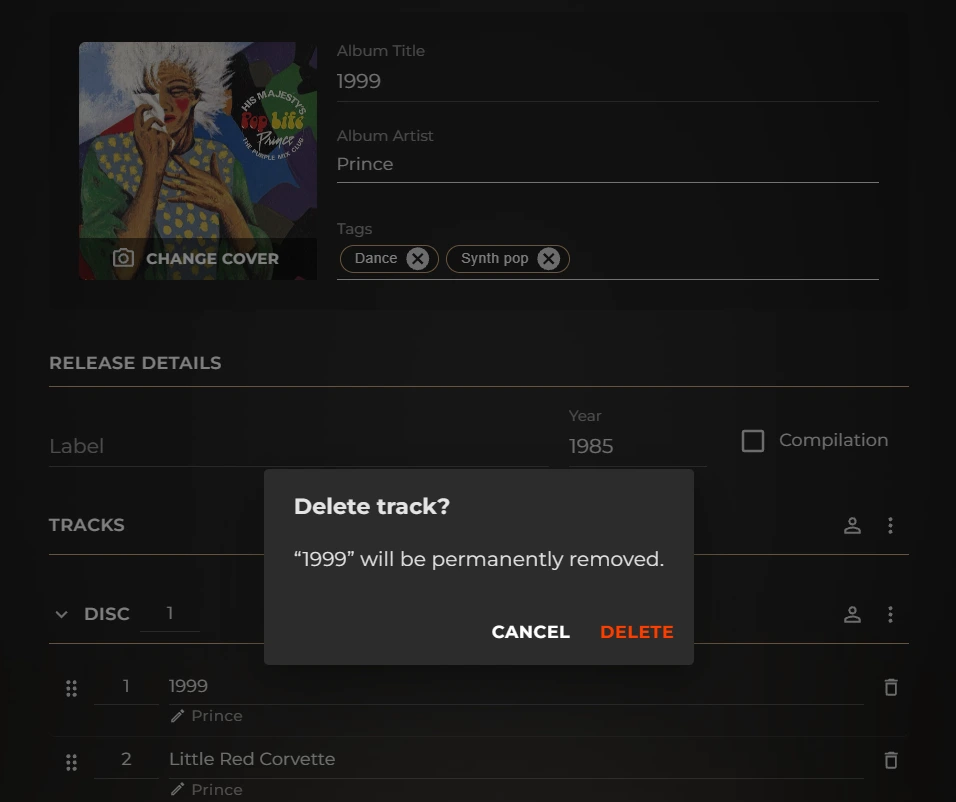
You can easily remove individual tracks from an album by selecting the Bin icon next to the track you want to delete.
You’ll be prompted to confirm that the track will be permanently deleted. Select Yes to confirm.
Once you have finished editing the album, select the Save icon in the top-right corner. Your changes will then be applied.
Delete Entire Album
To delete an entire album that is no longer wanted or needed, there is no need to open the Editor.
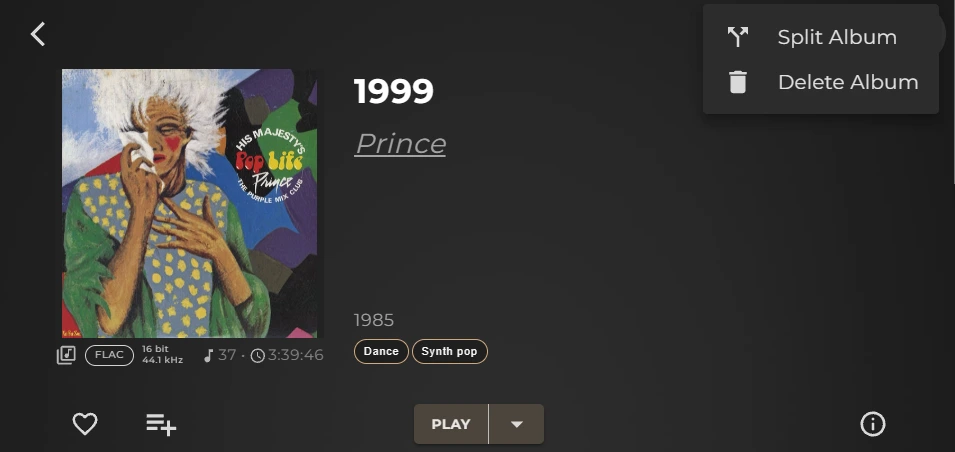
From the album page, select the More Options button (the three dots) in the top-right corner, then select Delete Album.
A confirmation prompt will appear. Select Delete Album to confirm. The album will be removed, and the system will then perform a rescan to reflect the changes.