

The now playing page can be accessed by selecting the player bar at the bottom of the screen.
Once the Now Playing page is up, you will notice the following:
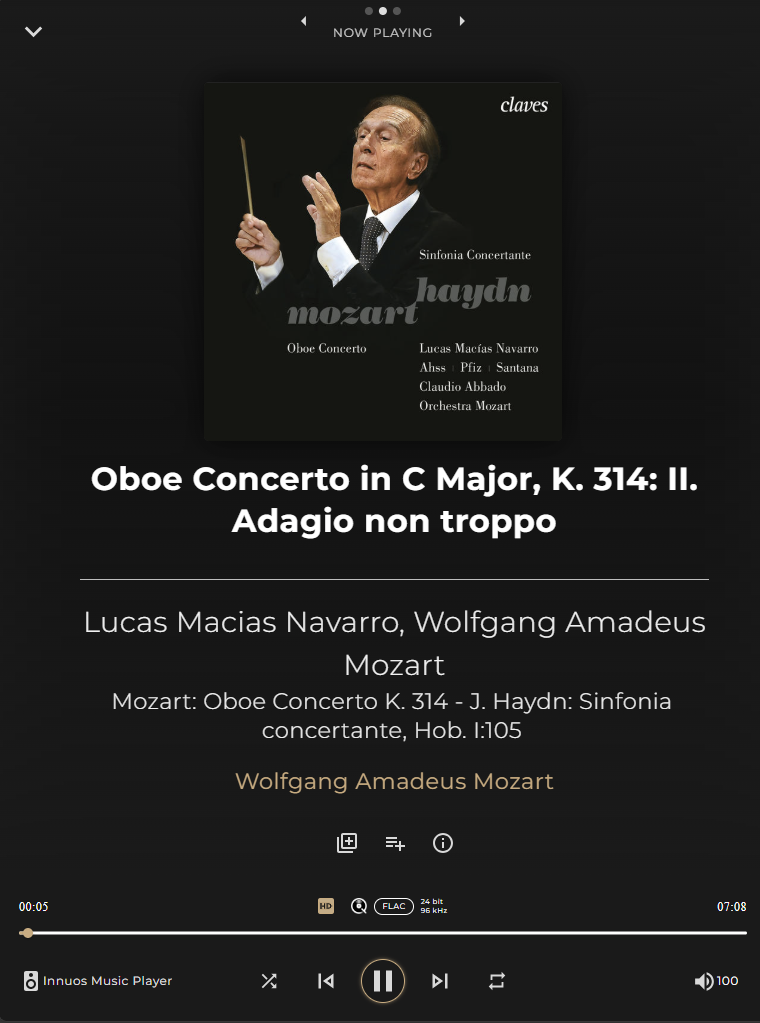
1 – Album artwork
Select this to expand the artwork to full screen.
2 – Track title
3 – Artist
Select this to go to the full page for the artist.
4 – Album title
Select this to go to the full page for the album.
When a track contains classical music metadata tags, this section (2-4) automatically adapts to display the additional metadata:
- Work: Displayed at the top in smaller text (e.g. Mozart: Oboe Concerto K. 314 – J. Haydn: Sinfonia concertante, Hob. I:105).
- Movement / Part Title: Displayed prominently as the primary headline (e.g. Oboe Concerto in C Major, K. 314: II. Adagio non troppo).
- Performers: Displayed in canonical format (e.g. Lucas Macías Navarro, Wolfgang Amadeus Mozart).
- Composer: Displayed beneath the performers (e.g. Wolfgang Amadeus Mozart).
5 – Track options (left to right)
- Favourites – add the track to your favourites. A white heart identifies it as a favourite.
- Add to Playlist – add the current track to a new or existing playlist.
- Info – view details such as release date, genre, file path and more.
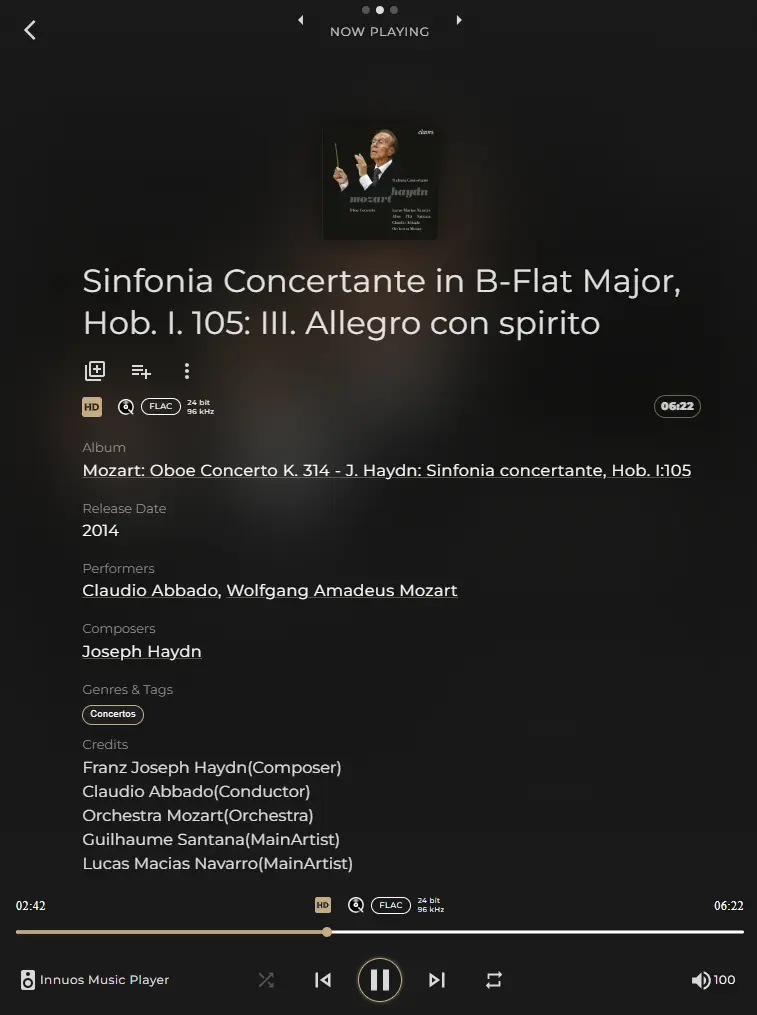
6 – Audio information
Shows technical details about the track (source, file format, sample rate, resolution).
If SmartQ is enabled, its icon will appear once active, adding more tracks to the end of your play queue.

7 – Scrollbar
Indicates the progress of the track. You can rewind or fast forward by tapping on a position or dragging the progress marker.
8 – Output
Displays the currently selected output. Select this icon to see available outputs including DACs, UPnP streamers, and other Innuos network streamers.
9 – Playback controls
Play, pause, skip, or go to the previous track. Shuffle and repeat modes are also here.
- Active shuffle/repeat icons turn gold (inactive icons are grey).
- Repeat can be set to loop the entire queue or a single track.
10 – Volume
Adjust the playback volume.
11 – History
When viewing the Now Playing page, if you swipe left you will taken to the History page. This page will display the last tracks you’ve been listening to.
12 – Queue
Similar to the above when viewing the Now Playing page, if you swipe right you will be taken to the Queue page. Here you can see your existing play queue.