The System tab in the Sense app provides access to settings for configuring your Innuos system, managing your music library and streaming services, and performing system maintenance.
Audio
The System tab in the Sense app provides access to settings for configuring your Innuos system, managing your music library and streaming services, and performing system maintenance.
The full list of Audio settings can be found here – Getting Started
Storage
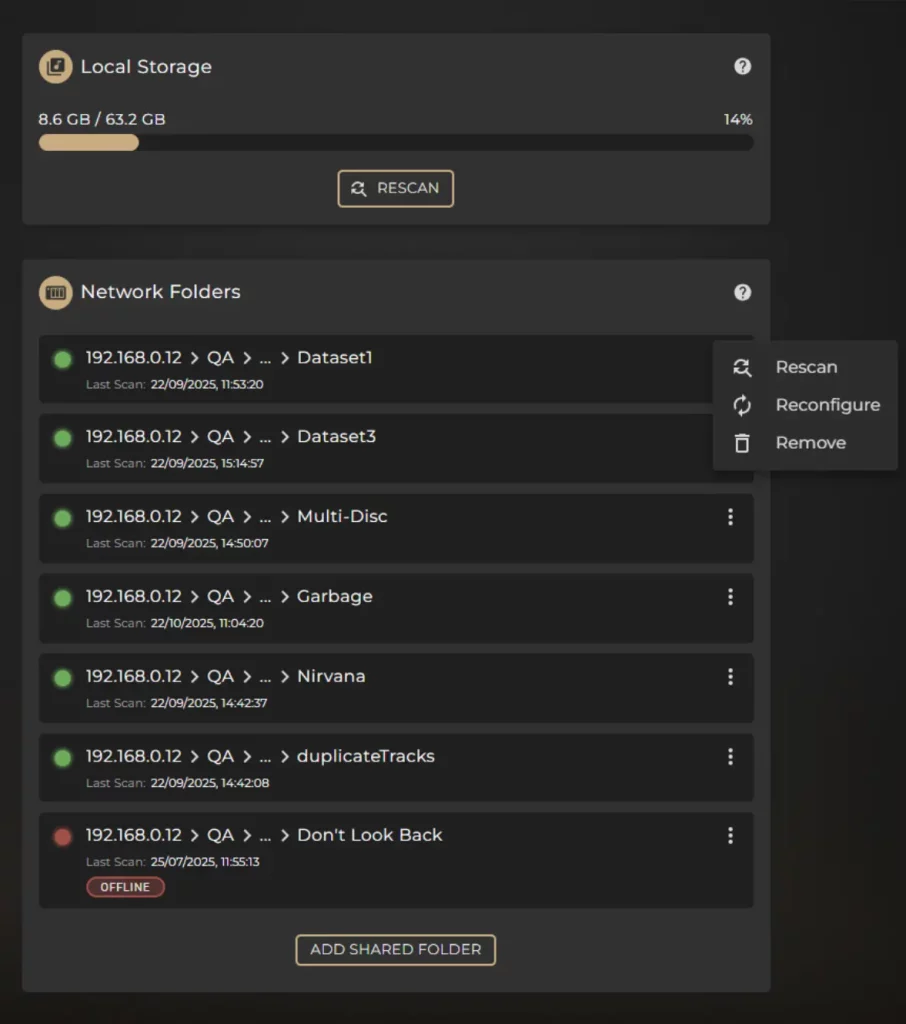
View your internal music storage and manage shared folders from network storage devices, such as a NAS.
- Local Storage: View total storage capacity and how much is currently used by your music library. Use SCAN if changes made directly to your music files are not reflected in Sense.
- Storage Drives*: Any installed M2 NVMe SSDs will be listed here with their status, model number and maximum available capacity. Use the REMOVE option here first before uninstalling the SSD.
*Only visible in Sense with systems that have user-accessible M2 SSD bays.
- Network Folders: Add and manage shared folders containing music stored on a NAS or another music server. You can check connection status and rescan individual folders when needed.
System Mode
Change how your Innuos system operates, including Standalone, Endpoint, Roon and HQPlayer modes.
See System Modes – Explained for details on each option and when to use it.
SmartQ
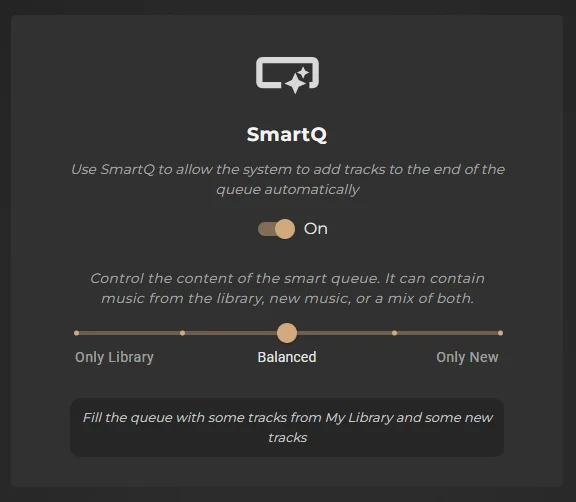
Enable or disable SmartQ, which automatically adds tracks to the end of your current playback queue.
You can adjust its behaviour to favour new music that is not already in your library, music exclusively from your existing library, or a balance of both.
See SmartQ for more details.
See here for more details on this feature – SmartQ
Language and Timezone
Set your system’s timezone and preferred interface language.
Available languages include English, German, French, Vietnamese, Simplified Chinese and Traditional Chinese.
System Update
Check your current software version and install updates when available.
We recommend keeping your Sense software up to date, regardless of whether you use your Innuos system in Standalone, Roon Core or another operating mode.
Streaming Services
Connect and manage your supported streaming services, including Qobuz, TIDAL, Deezer, IDAGIO and HighResAudio.
For TIDAL and Qobuz, Library Integration controls whether your saved tracks, albums and artists appear in your main Sense music library. Qobuz also supports integration of music purchased through its download store.
Both services offer a Resync option. Use this when you’ve added or removed music in the service’s own app and want those changes reflected in Sense.
AirPlay
Systems running Sense 26 support Apple AirPlay 2, allowing you to stream audio from compatible Apple devices to your system in Innuos Standalone mode.
The AirPlay device name for your Innuos will be shown here, including any custom name assigned via the Apple Home app.
- Reset Name: Removes any custom name assigned through the Apple Home app and restores your Innuos system’s default hostname for AirPlay.
Factory Reset AirPlay: Resets the AirPlay configuration, clearing existing connection and authentication parameters.
Sonos
Enable Sonos integration to access locally stored music from your Innuos system through the Sonos app.
The settings provide the required filepath, username and password for connecting your Sonos system. Enabling integration allows Sonos to update its music library when new files are added to your Innuos server.
Important: Sonos supports only certain audio formats. Check compatibility before troubleshooting playback issues.
See Connecting Sonos Systems for setup instructions.
UPnP
Enable or disable the preconfigured AssetUPnP server, which makes your Innuos music library available to compatible UPnP network players. This setting is enabled by default.
Important: AssetUPnP is disabled when your Innuos system is operating in Roon Core or an Endpoint mode.
See Innuos & UPnP Streamers for more information.
Contact Support
Submit a support request directly through Sense. Your system automatically includes useful diagnostic information, such as its model, software version and operating mode, helping the Innuos Support team investigate your issue.
System Logs
The System Logs should only be used in co-ordination with Innuos Support.
If you are encountering a problem with your system, then the System Logs can be enabled here. Once the issue has then been replicated, use Send Logs To Innuos to have them sent directly to the Support team in coordination with your existing or new support ticket.
If required, a copy of the logs can be downloaded as a ZIP file to be sent to Innuos Support.
These files contain technical information used to investigate system issues and can only be properly examined by the support team.
About Innuos Sense
Access the privacy policy and disclaimer information relating to the Sense app.
Advanced Settings
These settings are intended for specific system configurations, maintenance and troubleshooting. Only change them when you understand their purpose or have been advised to do so by Innuos Support.
Offline Mode
Force your system into an offline state when an internet connection is unavailable or not required.
In this mode, the system will not attempt to authenticate streaming services or retrieve online metadata when ripping CDs. Other functions requiring internet access may also be affected.
Rescan All Library
This performs a full deep-scan of your entire music library. All files are re-read and refreshes the metadata.
All systems will automatically be prompted with this option after updating to Sense 26 for the first time, to account for the expanded library options for Classical music. The rescan is optional and can be ignored, but is highly recommended for users with Classical files in their library.
Compact Music Library Database
Consolidate the music library database and remove references to previously deleted imports. This may help improve database performance.
Automatic MQA Detection
Allow Sense to detect whether a connected DAC supports MQA and identify its capabilities as an MQA Renderer or Full Decoder.
If you experience compatibility issues with a DAC running older firmware, try disabling this setting.
Clear Queue Cache
Clears cached queue data. Use this option only when instructed by the Innuos Support team.
Refresh Library Cache
Refreshes the library cache. Use this option only when instructed by the Innuos Support team.
Clear Music Library
Deletes all music files within the internal storage of the system and unmounts any NAS shares. It does not alter any current system settings or connected streaming services.
It is non-reversible and you must type in ‘CLEAR’ for confirmation first.
This should be primarily used when you only want to mass-delete all music files kept within the internal storage of the server.
Factory Reset
This action deletes all music stored on your system and restores settings to their factory defaults. Playlists, favourites and other library data are also erased.
It is non-reversible and you must type in ‘RESET’ for confirmation first.
Use Factory Reset only when you deliberately want to return your system to its default configuration. It should not be used as a general troubleshooting step.