

Please note that legacy MK2 systems will still require the plugin
Requirements
- Innuos system updated with the latest version of Sense.
- Spotify app working on a supported control device or computer
- Innuos System set to in Innuos Standalone Mode
How to enable the LMS Spotify plugin
1. Access the LMS Settings -> Plugins tab
How to access the internal LMS server settings
- On any computer or device connected on the same network as your server, use your web browser and open https://my.innuos.com
- Click on your Innuos system and should open on the browser using the IP address (ex: 192.168.1.100)
- On your browser, edit the address bar and add “:9000/default/settings/index.html” so it looks like “192.168.1.100:9000/default/settings/index.html”
2. Look in the 3rd Party Plugins Section for “Spotify for Squeezebox. Still Spotty”.
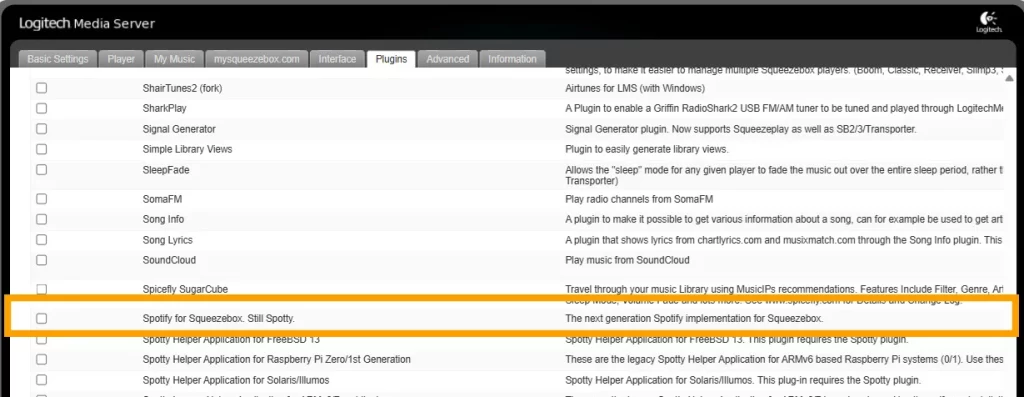
3. Tick the checkbox on that line and click the Apply button on the bottom-right corner of the screen to install the plugin.

4. A dialog will show asking to restart LMS. Please click “Restart Now” and then wait 1 minute.
5. Refresh the browser page and navigate again to Plugins. Spotty should now show as an active plugin.
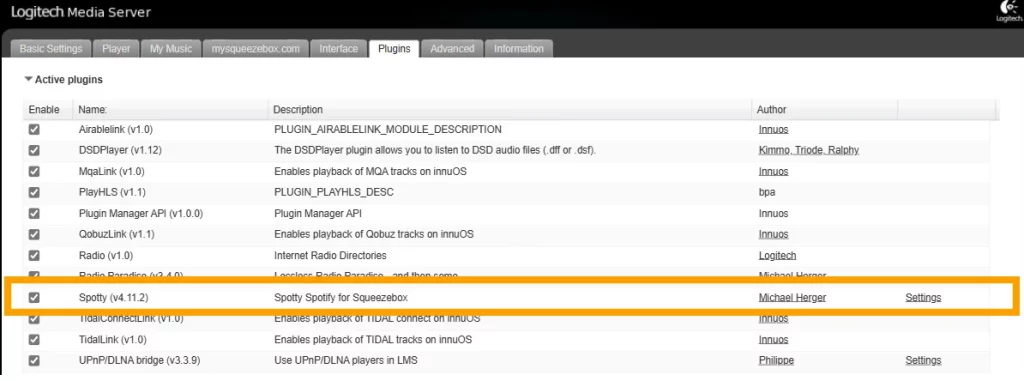
6. With the Spotty plugin installed, click on the Settings link found on the right-hand side of the same line.
7. This will bring you to Spotty configuration page which will direct you to open the Spotify app on your phone/tablet/PC and connect to the new ‘Spotty Authorization’ client that should now be listed under your Spotify Connect options.
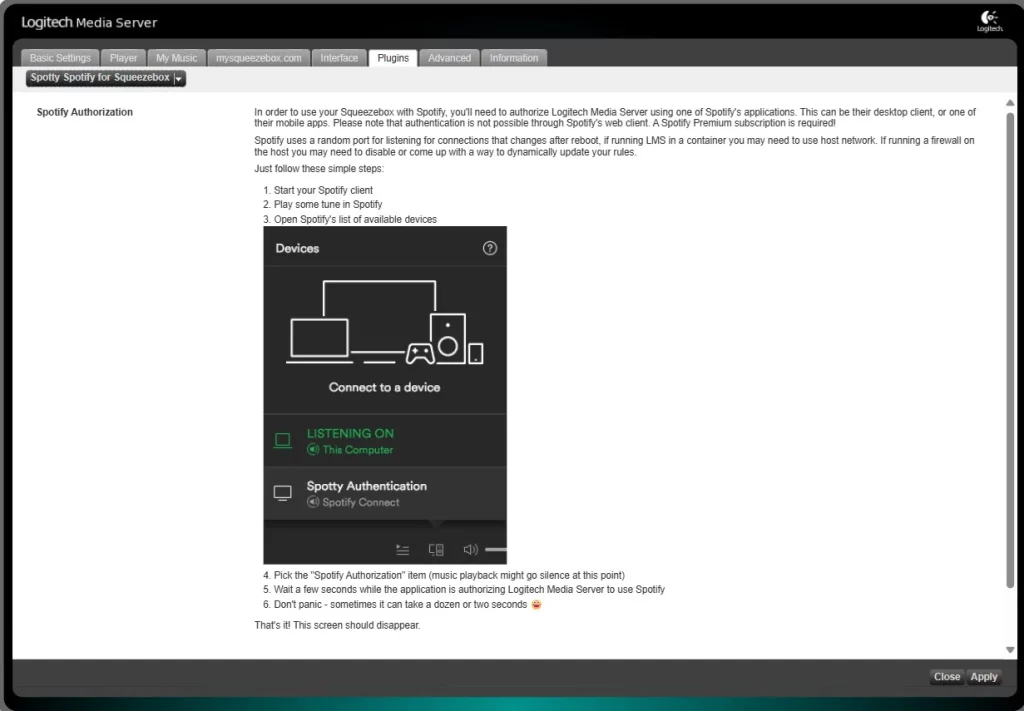
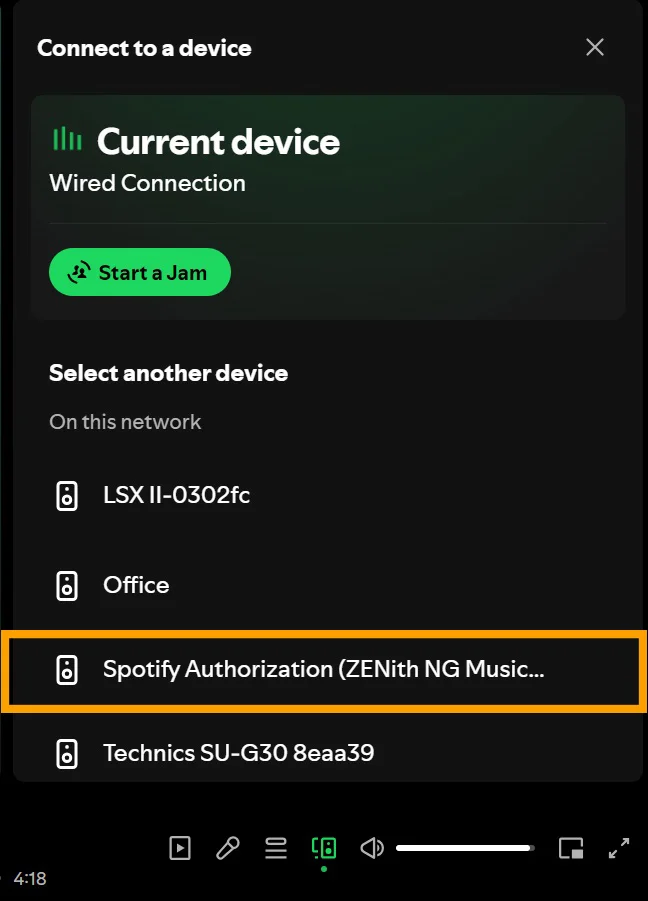
8. Proceed with this and choose the ‘Spotty Authorization’ option that will also have your Innuos device labelled beside it. The connection process can take a while, so do allow a full minute for this to complete.
9. Return to your browser where you were configuring the LMS plugin. The page should now have refreshed (you may need to manually refresh your page) to now show your connected Spotify account and several new settings options.
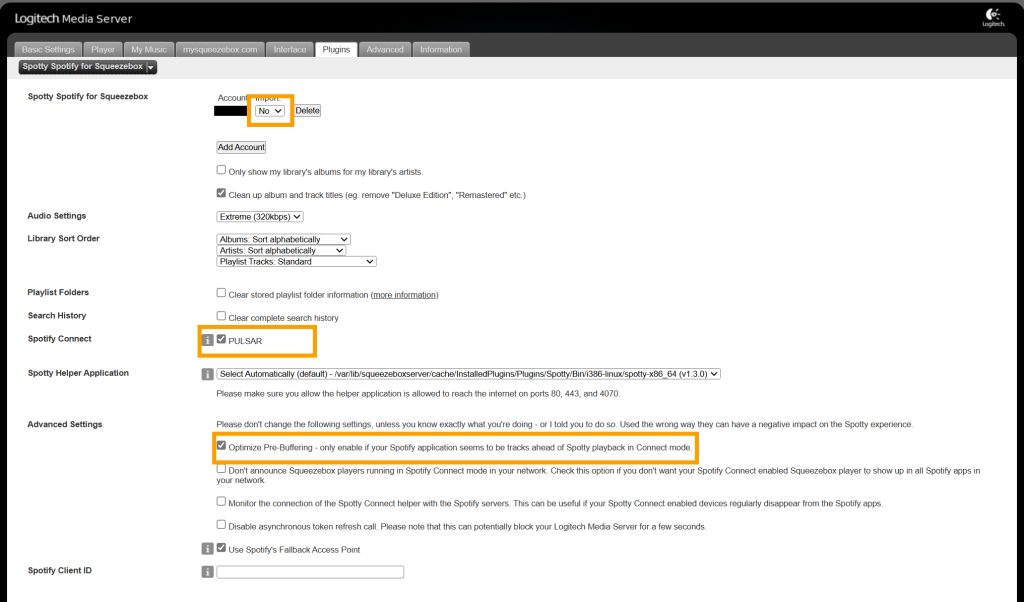
10. Under the drop-down option of ‘Import’, set to NO.
11. “Ensure that you check the box for the Innuos players you want to use with Spotify Connect. Additionally, be sure to enable ‘Optimise Pre-Buffering’.
12. Select ‘Apply’ in the bottom-right corner of the page to finish the Spotify configuration.
Your Innuos system should now be visible as a Spotify Connect device within the Spotify app on your control device, allowing you to connect and play Spotify music through your Innuos system.