When editing an album of locally stored music files in Sense, you can search online for matching album metadata. Sense analyses your files and search criteria to identify potential matches, allowing you to retrieve missing or updated information without having to enter everything manually.
Depending on the match and the information available online, Sense can retrieve:
- Cover artwork
- Artist and album title
- Track names and numbers
- Genre
- Composer
- Disc numbers
- Year of release
- Record label
For classical music, you can also enable Classical Metadata to search for additional information, including works, movements, conductors, soloists, performers, orchestras, choirs and ensembles.
Step 1: Open the album editor
In the Sense app, navigate to the album you want to edit.
Select the Edit icon (the pencil) in the top-right corner to open the album editing interface.
Step 2: Open Search Online
In the editing interface, select the Search icon (the magnifying glass) in the top-right corner.
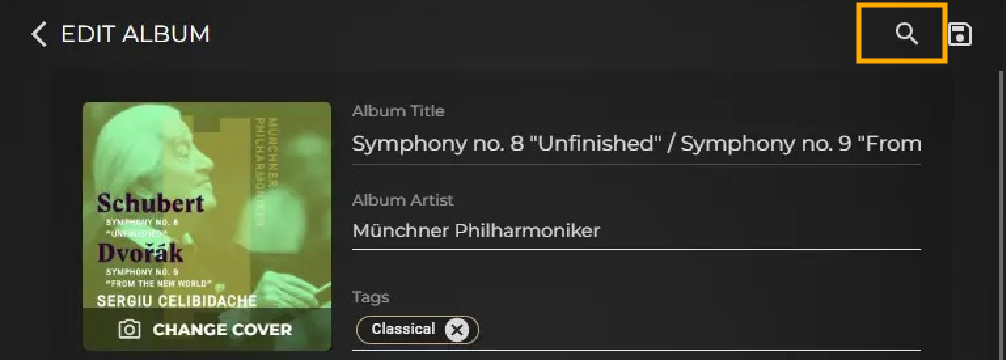
This opens the online metadata search, where you can define the criteria Sense will use to find matching releases.
Step 3: Choose your search criteria
Sense uses the existing album information as a starting point. You can adjust the search criteria to help find a more accurate match.
Depending on the information you have available, you can search using:
- Album title and artist: Start with the existing album information, editing it if necessary.
- Track titles: Search using track names when the album title or artist information is incomplete or differs from the online listing.
- CD barcode: Enter the barcode from the original CD packaging when available.
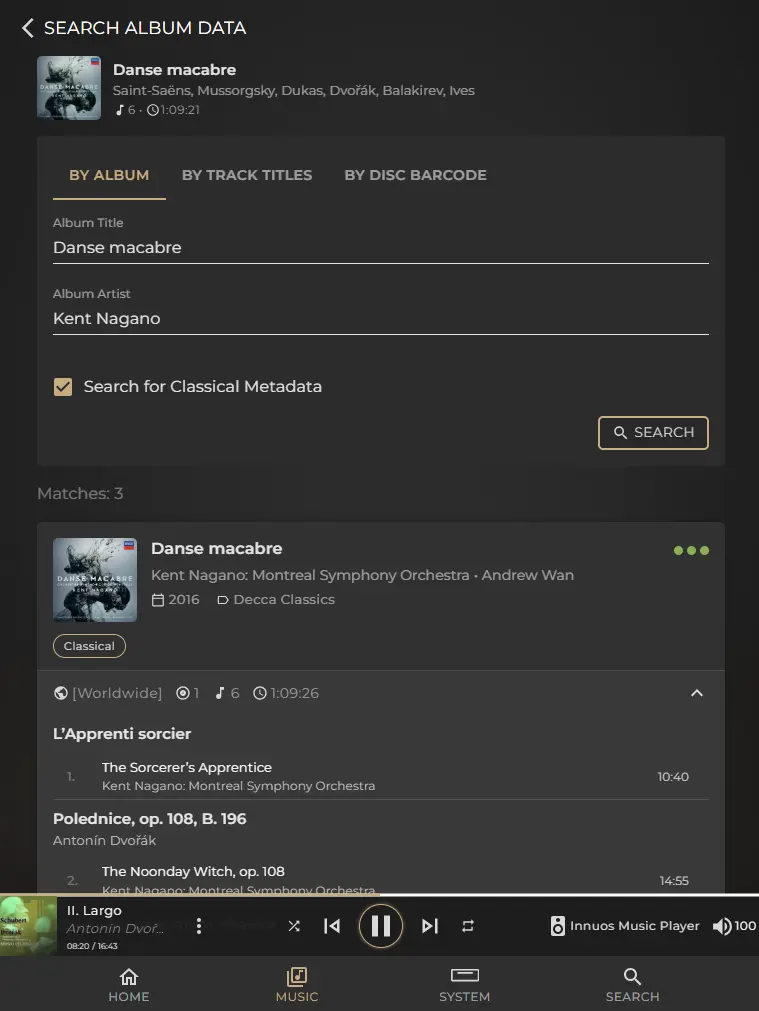
You can also enable Classical Metadata if you’re searching for a classical recording. This expands the search to include classical-specific information, such as works, movements and performer roles.
Once you’ve chosen your criteria, select SEARCH to begin.
Step 4: Review the search results
Sense presents a list of potential matches, ordered by its accuracy level as stated by the green / orange / grey match indicator.
The closest match will appear first, but it’s worth reviewing the results before selecting.
An album may have several releases or editions, sometimes with different cover artwork, release years, record labels or track listings. The same recording may also appear under slightly different titles.
Compare the available information to identify the release that best matches the music in your library. Check the album title, artist, artwork, release details and track listing where available.
For classical music, also compare the composer, conductor, soloists, orchestra or ensemble, and the listed works and movements.
Tip: Don’t automatically choose the first result. A lower-ranked match may contain more accurate information for your particular release.
Step 5: Inspect a potential match
Expand a result to review more of its metadata before applying it.
Check that the track names and order correspond to your album. For multi-disc releases, check the disc organisation as well. Where the information is available, compare the performers and release details to distinguish between similar editions.
If the result doesn’t look right, return to the list and inspect another match. You can also go back and refine your search criteria if none of the results is suitable.
Step 6: Apply the metadata
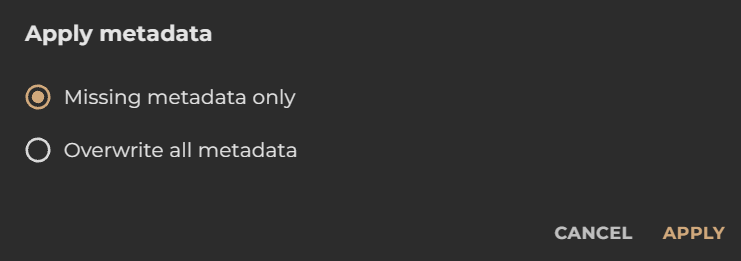
Once you’ve identified the most suitable match, select it to apply its metadata in the editor.
Where available, the Fill blanks only option allows you to populate missing information while preserving existing metadata. This is particularly useful if you’ve already corrected some fields manually.
If you intend to replace all existing information, check the available options carefully before proceeding.
Step 7: Review and save your changes
Before saving, review the updated album information to make sure it matches your music.
Make any further corrections in the editor if required, then select Save to commit your changes to the library.
If you can’t find a suitable match
If none of the results matches your album, try refining your search. You could use a track title instead of the album title, adjust the artist name or search using the CD barcode.
For classical recordings, make sure Classical Metadata is enabled if you need to find a match based on works or performer information.
If you still can’t find a suitable release, you can enter or correct the metadata manually in the album editor rather than applying an inaccurate match.
Related article: Classical Mode – Editor