Within the Sense app, it is possible to directly download tracks and albums that have been purchased through the Qobuz webstore.
Note: It is not currently possible to have a single ‘download album’ option and downloads must be done on a track-by-track basis.
Requirements:
– Sense v2.3.0 or newer
– Internal storage drive with sufficient free space available.
– The desired Qobuz account to be logged in and active on STREAMING SERVICES page.
– System mode set to Innuos Standalone
- Navigate to the MUSIC page.
- Select QOBUZ, found near the bottom of the page
- Select PURCHASED ALBUMS or PURCHASED TRACKS, found near the bottom of the page. If choosing PURCHASED ALBUMS, select the desired album.
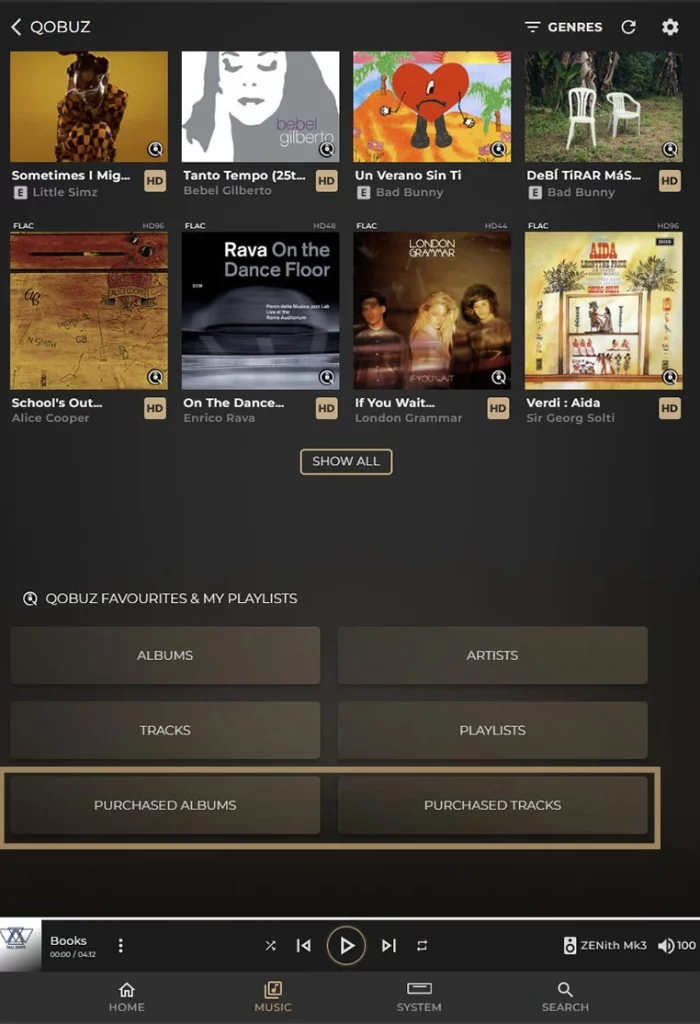
- Beside each track is an ellipsis (3 dots) icon for more options. Select this to reveal a ‘Download Track’
- Choose ‘Download Track’ to begin downloading the track into the local storage of your Innuos server.
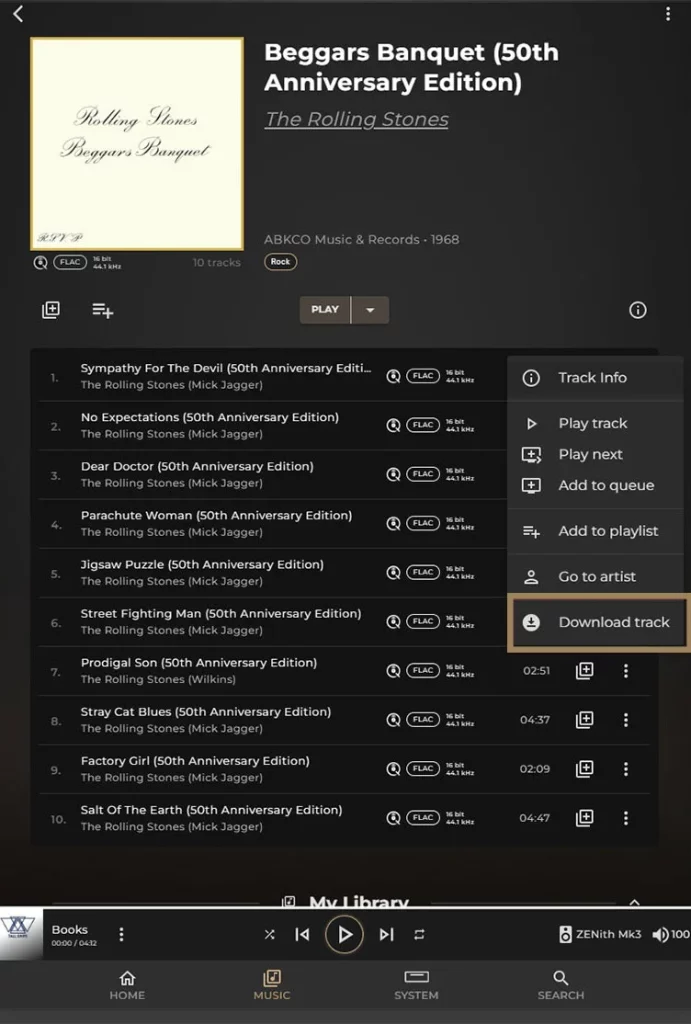
The default format will be FLAC and will be downloaded in the highest resolution permitted by the terms of your original purchase transaction with Qobuz.
Once a track is downloaded, the ‘Download Track’ option for it will be greyed out to avoid duplication.
TO AVOID DUPLICATES: You may wish to return to the STREAMING SERVICES page under SETTINGS and disable ‘Include Purchased Music’ on the Qobuz tab if you do not want both the downloaded version and the online ‘streaming’ version to both be shown in your library, thereby reducing the appearance of duplicate entries.